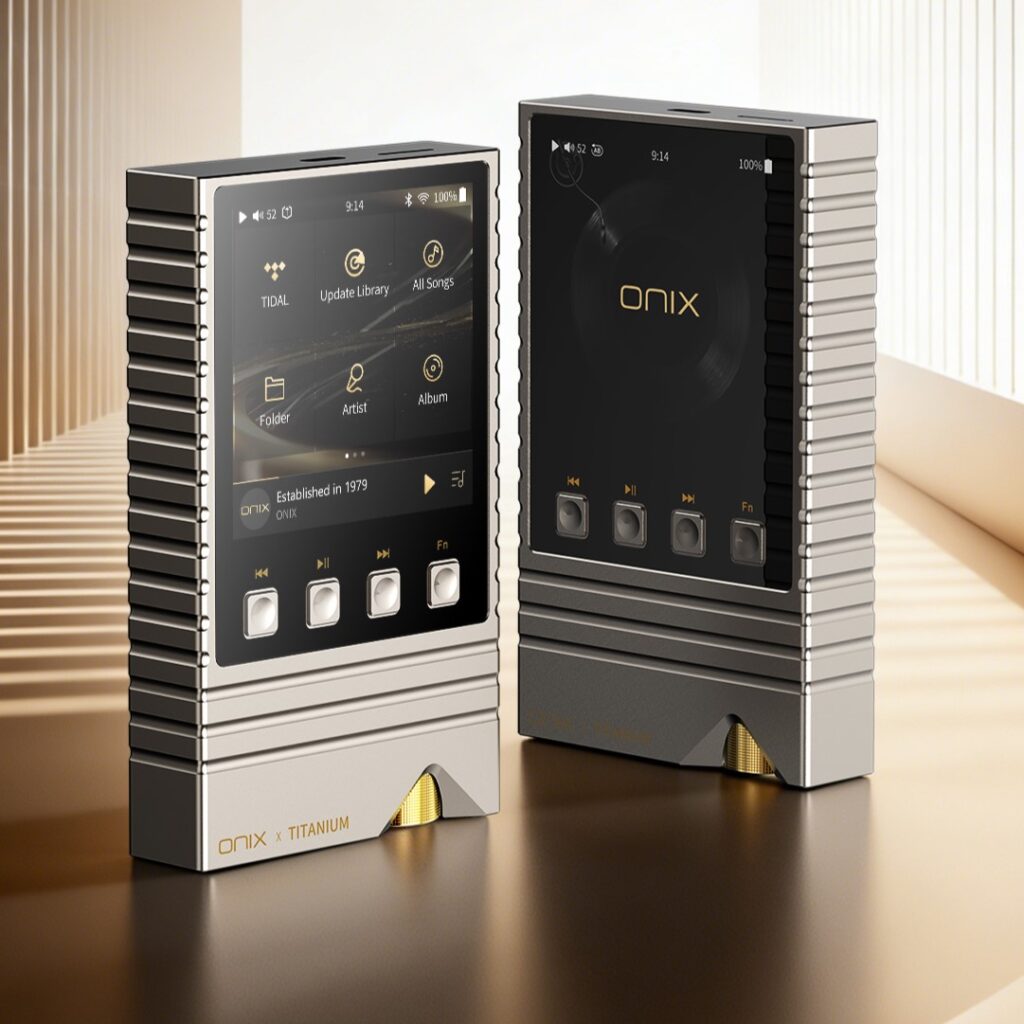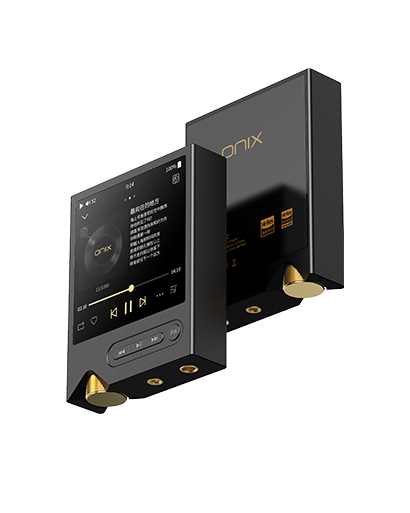

Learn More about ONIX XM2 – Compact Portable Player
NEW ONIX XM2 Firmware V1.2
Download update file from Google Drive
Update Notes XM2 V1.2
- Added Battery Charging Optimization Function*
- Added battery Percentage Display Option
- Adjusted Bluetooth Volume Control
- Adjusted H-Res Files category sorting
- Fixed Tidal issue causing some playlists / files not being displayed
- Other fixes and improvements
*Available in System Settings – Battery
When enabled, battery will only start charging once it reaches below 20%. It will only charge to 80% of capacity.
–
ONIX XM2 Firmware V1.16
Download update file from Google Drive
Update Notes XM2 V1.16
- Optimized Library Scan
- Other improvements and fixes
–
How to update XM2
Firmware Update Demands a MicroSD Card
Manual Update
- Make sure your device is fully charged.
- Unzip the downloaded file and put “update.tar” file into root folder / main folder / highest level of Micro SD card. Do NOT unzip the “update.tar” file, copy it as it is.
- Go to System settings – System Update and click on “TF card update” and confirm. Wait until system restarts. Check in settings “About” to be sure new firmware is installed.
- If Micro SD card was removed during update process, device will show “insert TF Please”, please insert Micro SD card back into your device in order to continue update.
- If update doesn’t start after choosing “System Update”, please check if the file has been unzipped, if the file is placed in root folder, or if the file hasn’t been damaged during the transfer.
Over-The-Air Update
ONIX XM2 can be updated to latest firmware version using Wi-Fi connection.
- Connect XM2 to Wi-Fi network connected to internet. Make sure player is fully charged.
- Go to System settings – System Update, click on “Network update”, confirm update and update will start to download and install.
Wait until download and installation is completed and system restarts. Check in settings “About” to be sure new firmware is installed.
Note: If latest version of firmware is already installed, XM2 will show notification and will stop update.